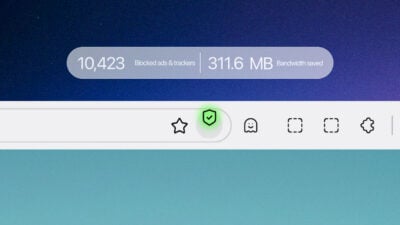


In 2026, how to clear browser cookies on android is crucial for reclaiming privacy and speed on your Android device, as bloated trackers relentlessly monitor your behavior across sites while cache overload causes frustrating slowdowns, Herond’s privacy-first browser stops this at the source with automatic adblock and anti-fingerprinting. This simple act delivers an instant “fresh start,” wiping out login glitches, website errors, and stale data that disrupt mobile browsing sessions. With Herond’s advantage, manual clearing becomes rare: our built-in shields block threats proactively, keeping your device fast, secure, and glitch-free without constant maintenance.
Quick Summary Table: Cookies vs. Cache vs. History
| Feature | Cookies | Cache | History |
| Purpose | Stores site preferences, logins, and trackers for personalized sessions. | Temporarily saves images/videos to load pages faster on revisits. | Records visited sites, searches, and forms for back-navigation. |
| Impact of Deleting | Logs you out; resets preferences; stops trackers (privacy win). | Forces re-download of media (slower first loads, frees space). | Removes site visit records (no autofill for old forms). |
| Safe to Delete? | Usually yes—rarely holds passwords (use Password Manager instead). | Always safe—speeds up long-term performance. | Safe if unconcerned about revisit suggestions. |
| Herond Tip | Auto-blocks 3rd-party trackers; clear selectively via site controls. | Auto-manages bloated cache; no manual needed. | Private mode hides history entirely. |
Step-by-Step: How to Clear Cookies on Herond Browser (Android)
Why Herond First?
Herond offers the fastest 2-tap privacy shortcut—block trackers upfront and clear data effortlessly without digging through bloated menus like stock browsers.
Step 1: Tap Herond Icon/Menu
Open Herond on your Android. Tap the Herond shield icon (bottom center) or three-dot menu (top right) for quick access to controls.
Step 2: Privacy & Security
Select Privacy & Security from the menu. Herond prioritizes this tab upfront, unlike cluttered browser settings.
Step 3: Clear Browsing Data -> Cookies
Choose Clear Browsing Data, then toggle Cookies and Site Data only (uncheck others to preserve passwords/history).
Step 4: Tap Clear Data
Hit Clear Data, instant fresh start! Herond confirms completion and blocks new trackers automatically.
How to Clear Cookies on Google Chrome (Android)
Standard Chrome Process
Chrome requires deeper menu navigation than Herond, tap through multiple screens, but use the Time Range selector for targeted clearing (e.g., “Last hour” vs. “All time”).
Step 1: Open Chrome & Tap Menu
Launch Chrome on Android. Tap the three dots (top right) to open the menu.
Step 2: Go to Settings
Select Settings from the dropdown, scroll if needed under the Basics section.
Step 3: Privacy and Security
Tap Privacy and Security (midway down the Settings page).
Step 4: Clear Browsing Data
Choose Clear browsing data. Select time range: “Last hour” for quick fixes or “All time” for full reset.
Step 5: Select Cookies -> Clear
Check Cookies and site data only (uncheck others to save passwords/history). Tap Clear data to confirm.
How to Clear Cookies on Samsung Internet
Galaxy Default Browser
Samsung Internet, pre-installed on millions of Galaxy devices, hides data clearing deeper in menus—less intuitive than Herond’s 2-tap shortcut.
Step 1: Open Menu
Launch Samsung Internet. Tap the three horizontal lines (bottom right).
Step 2: Access Settings
Select Settings from the menu.
Step 3: Personal Browsing Data
Tap Personal Browsing Data (scroll down if needed).
Step 4: Delete Browsing Data
Choose Delete Browsing Data. Toggle Cookies only (uncheck others to save passwords/history).
Step 5: Confirm Delete
Tap Delete Data -> Delete to finish, logs you out but frees trackers
How to Clear Cookies on Firefox & Opera for Android
Firefox Quick Clear
Firefox offers selective data deletion but requires Settings navigation, deeper than Herond’s instant shield access.
Step 1: Open Menu
Launch Firefox. Tap the three dots (top right).
Step 2: Settings
Select Settings from the menu.
Step 3: Delete Browsing Data
Tap Delete browsing data under Privacy section.
Step 4: Select Cookies Only
Check Cookies (uncheck cache/history/passwords). Tap Delete browsing data.
Opera Data Wipe
Opera buries clearing in Privacy settings, used for full resets, but Herond prevents buildup proactively.
Step 1: Open Menu
Open Opera. Tap O menu (bottom center) or three dots (top right).
Step 2: Settings -> Privacy
Go Settings -> Privacy.
Step 3: Clear Data
Tap Clear data. Select cookies and site data only.
Step 4: Confirm Clear
Tap Clear to complete, refreshes sessions instantly.
Pro-Tip: How to Block Third-Party Cookies Automatically
Block Third-Party Cookies
Skip manual clearing by toggling “Block all third-party cookies” in browser settings
Chrome: Settings -> Privacy -> Cookies -> Block third-party
Firefox: Settings -> Enhanced Tracking Protection -> Strict;
Samsung Internet: Settings -> Privacy -> Block third-party cookies. This stops trackers at the source without logging you out of primary sites.
Herond’s Auto-Clear Feature
Herond takes it further with automatic session clearing, enabling Auto-Clear on Exit in Privacy settings to wipe cookies, cache, and trackers every time you close tabs or the app, delivering permanent privacy without manual intervention or performance hits.
Conclusion
How to clear browser cookies on android across Chrome, Samsung Internet, Firefox, Opera, and other major browsers restores speed, privacy, and glitch-free performance through simple settings toggles like “Block third-party cookies” or full data wipes, eliminating trackers, login issues, and slowdowns instantly. Herond revolutionizes this entirely with proactive auto-blocking of trackers at the source, plus Auto-Clear on exit that wipes sessions automatically, removing the need for manual maintenance forever. Download Herond today for effortless, permanent Android privacy where cookies never become a problem.
About Herond
Herond Browser is a cutting-edge Web 3.0 browser designed to prioritize user privacy and security. By blocking intrusive ads, harmful trackers, and profiling cookies, Herond creates a safer and faster browsing experience while minimizing data consumption.
To enhance user control over their digital presence, Herond offers two essential tools:
- Herond Shield: A robust adblocker and privacy protection suite.
- Herond Wallet: A secure, multi-chain, non-custodial social wallet.
As a pioneering Web 2.5 solution, Herond is paving the way for mass Web 3.0 adoption by providing a seamless transition for users while upholding the core principles of decentralization and user ownership.
Have any questions or suggestions? Contact us:
- On Telegram https://t.me/herond_browser
- DM our official X @HerondBrowser
- Technical support topic on https://community.herond.org