

We’ve all been there: you click “Login,” “Download,” or “Sign Transaction,” and… absolutely nothing happens. You click it again. Still nothing. It feels like your browser is just giving you silent treatment. It’s an annoying hurdle, but it’s an easy fix. Here’s a quick guide on how to switch off pop up blocker across all your devices, so you can get back to work without leaving your digital front door wide open to trackers and junk.
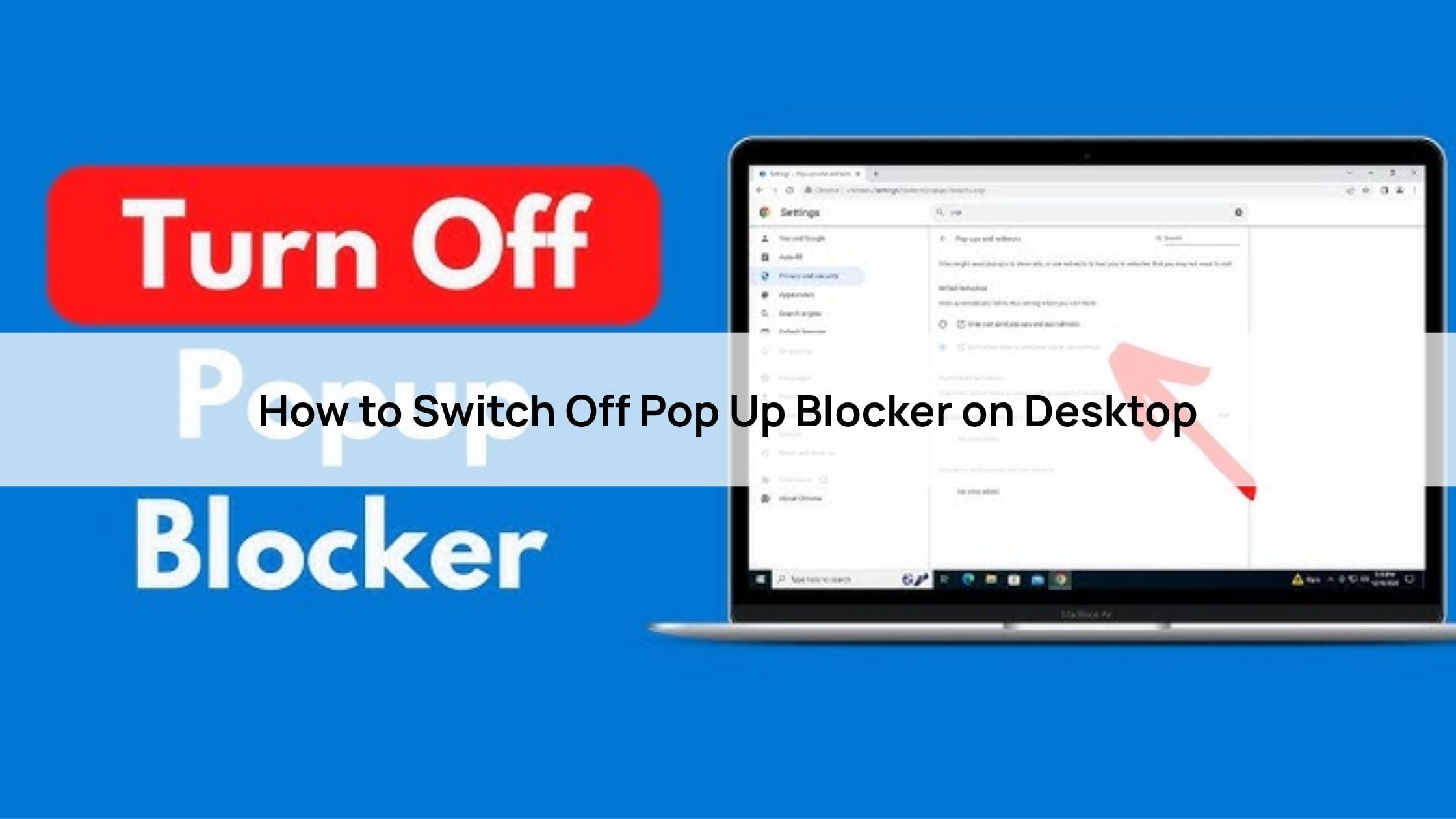
How to Switch Off Pop Up Blocker on Desktop
Google Chrome: Tap the three dots -> Settings -> Privacy and Security -> Site Settings. Scroll down to Pop-ups and redirects to flip the master switch or, better yet, just add specific sites to the “Allowed” list at the bottom.
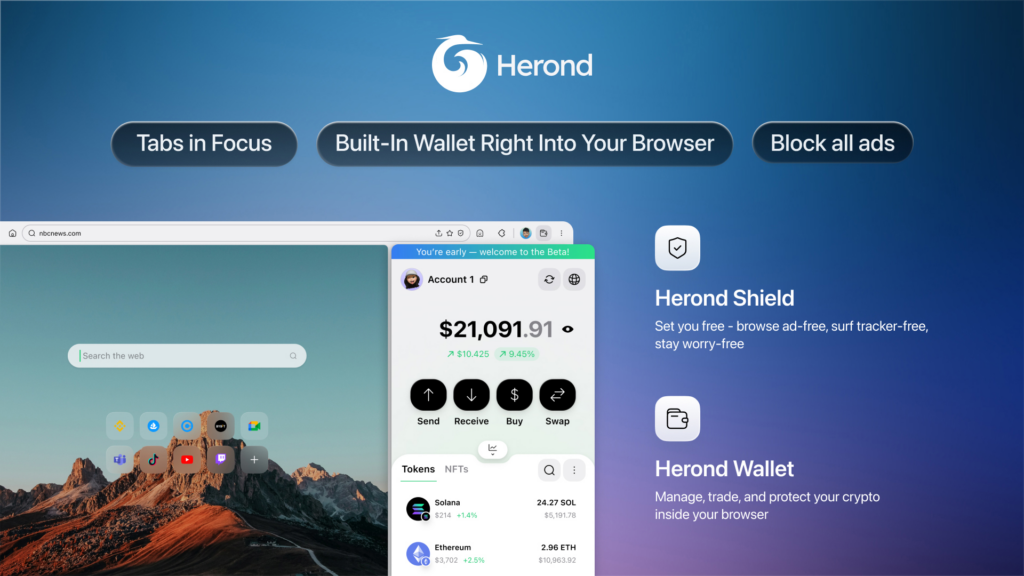
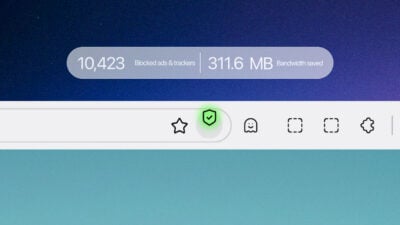
Herond Browser: You don’t need to dig through menus here. Just hit the Herond Shield toggle in the address bar for the site you’re on. It lets those necessary windows (like wallet signatures) through while keeping the invisible trackers and annoying ads blocked in the background.
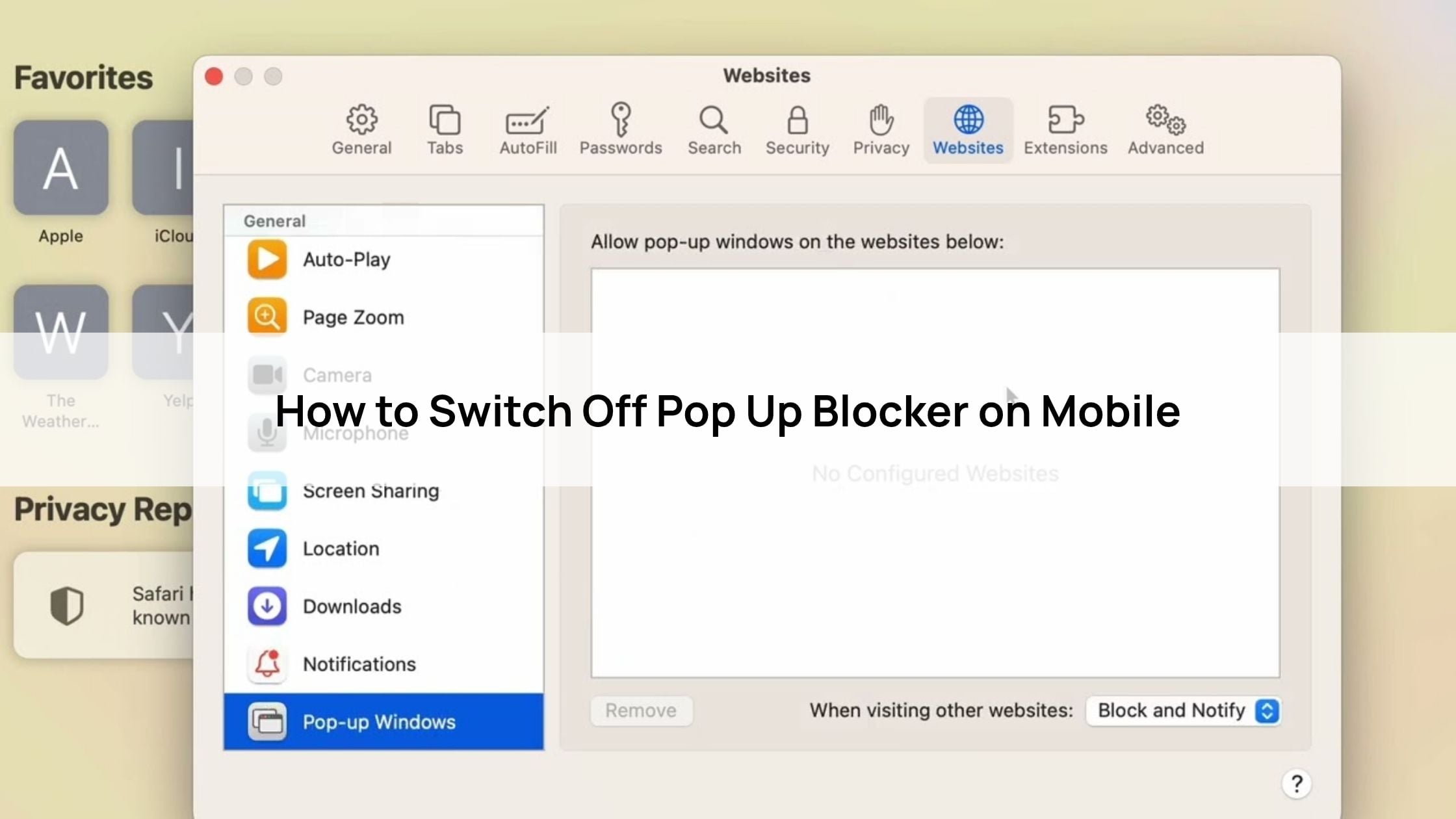
Safari (Mac): Go to the Safari Menu -> Settings -> Websites. Click Pop-up Windows on the sidebar. You can set it to “Allow” for the site you currently have open, or change the “When visiting other websites” setting to “Block and Notify” so you always get a choice.
Mozilla Firefox: Hit the three lines (Menu) -> Settings -> Privacy & Security. Scroll to Permissions and look for “Block pop-up windows.” You can uncheck it entirely, or click Exceptions to white-list only the tools you actually trust.
How to Switch Off Pop Up Blocker on Mobile
iPhone (iOS): Unlike other apps, Safari’s master switch is actually in your iPhone’s main Settings app. Head to Settings -> Apps -> Safari and look for Block Pop-ups under the General section. Flip it to grey to let those windows breathe.
Android (Chrome & Herond): Open your browser and tap the three dots in the top right. Go to Settings -> Site Settings -> Pop-ups and redirects. Toggle the switch to “Allowed.”
The “One-Time” Android Hack: If you don’t want to change your global settings, wait for the “Pop-up blocked” notification to appear at the bottom of the screen after you click a button. Tap “Always show” and Android will remember that specific site is a “friend” without lowering the guard for the rest of the web.
The “Safe” Way: Best Practices on how to switch off pop up blocker
- The “Never Allow All” Rule: It’s tempting to just shut the blocker off and be done with it, but that’s like leaving your front door wide open in a busy city. Stick to whitelisting specific, trusted domains – your bank, your favorite DEX, or your work tools. Keep the wall up for the rest of the wild web.
- Look for the Icon: Most browsers are actually trying to tell you when they’ve blocked something. Keep an eye on the right side of your address bar for a tiny window or “X” icon. Clicking that is usually the fastest way to grant one-click permission for just that one site.
- The Real Risks: There’s a reason these blockers exist. Phishing sites and intrusive scripts love to hide in unauthorized pop-ups to skim your data or slow your machine down. If a site you don’t recognize starts spamming windows, that’s your cue to close the tab entirely.
Why Traditional Blockers Fail (The Herond Browser)
The “All-or-Nothing” Trap: Most browsers treat security like a blunt instrument, it’s either a brick wall that breaks your favorite dApps or a wide-open door that lets the junk in. You shouldn’t have to choose between a functional wallet and a private experience.
Intelligence over Instruction: This is where the Herond Shield actually uses its brain. Instead of just blocking every “new window” command, it works with the internal AI to tell the difference. It recognizes the difference between a malicious tracking script and a necessary Web3 wallet signature or a secure login window. It’s smart enough to step aside when you’re trying to get work done, but stays firm when an actual threat tries to sneak through.
Conclusion
At the end of the day, a pop-up blocker is supposed to be a tool, not a barrier. If you’re constantly fighting with your browser just to log in or sign a transaction, it’s time to tweak the settings.
The goal isn’t to leave yourself vulnerable, but to find that “sweet spot” where your trusted sites work perfectly while the junk stays filtered out. Whether you’re whitelisting a single domain or using a smarter tool like the Herond Shield, you should be the one deciding what gets through.
About Herond
Herond Browser is the new AI browser, prioritizing privacy for a safer, faster, and smarter browsing experience with minimal data use. Built for the Web2-to-Web3 shift, it enables you to access the open web while you own your data, private Web3 assets, and earn true value.
To enhance user control over their compound experience, Herond offers:
- Herond AI: A new agentic browser that leads your workflow.
- Herond Shield: A robust adblocker and privacy protection suite.
- Herond Wallet: A secure, multi-chain, non-custodial social wallet.