
Ever click a button and… nothing? No login prompt, no download link, and definitely no wallet signature. It feels like your phone is just ignoring you. The truth is, your iPhone is trying to be helpful. By default, iOS browsers are set to “block all pop-ups” to save you from spammy ads. The problem is that these blockers aren’t very good at telling the difference between an annoying ad and a button you actually need to click. They end up catching the “good” windows in the crossfire. So, how to turn off pop up blocker on iphone?
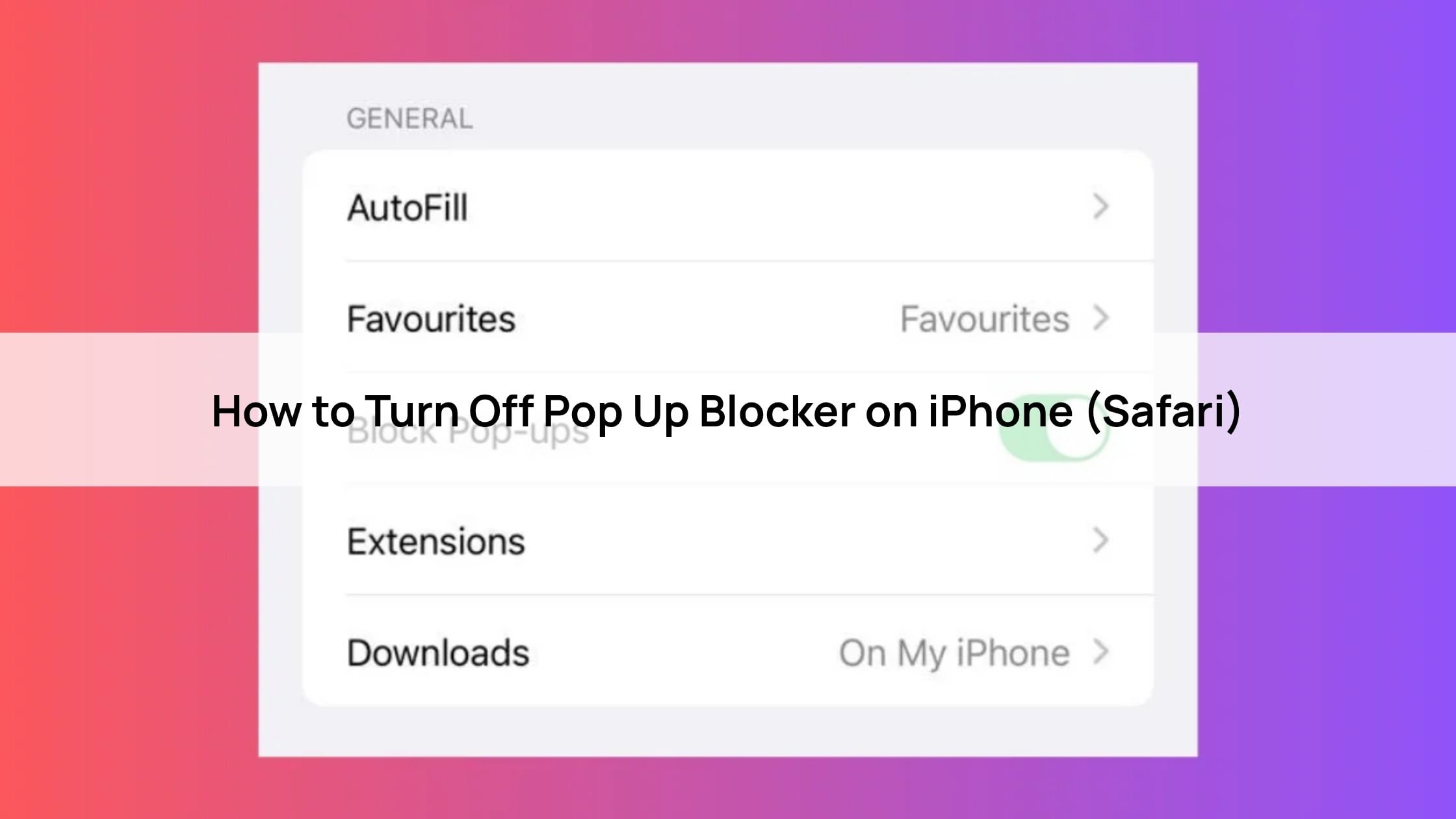
How to Turn Off Pop Up Blocker on iPhone (Safari)
Step-by-Step Guide:
- Open Settings: Grab your iPhone and head into the main Settings app.
- Find Safari: Scroll down until you see Apps, then find Safari (on older iOS versions, it’s just on the main list).
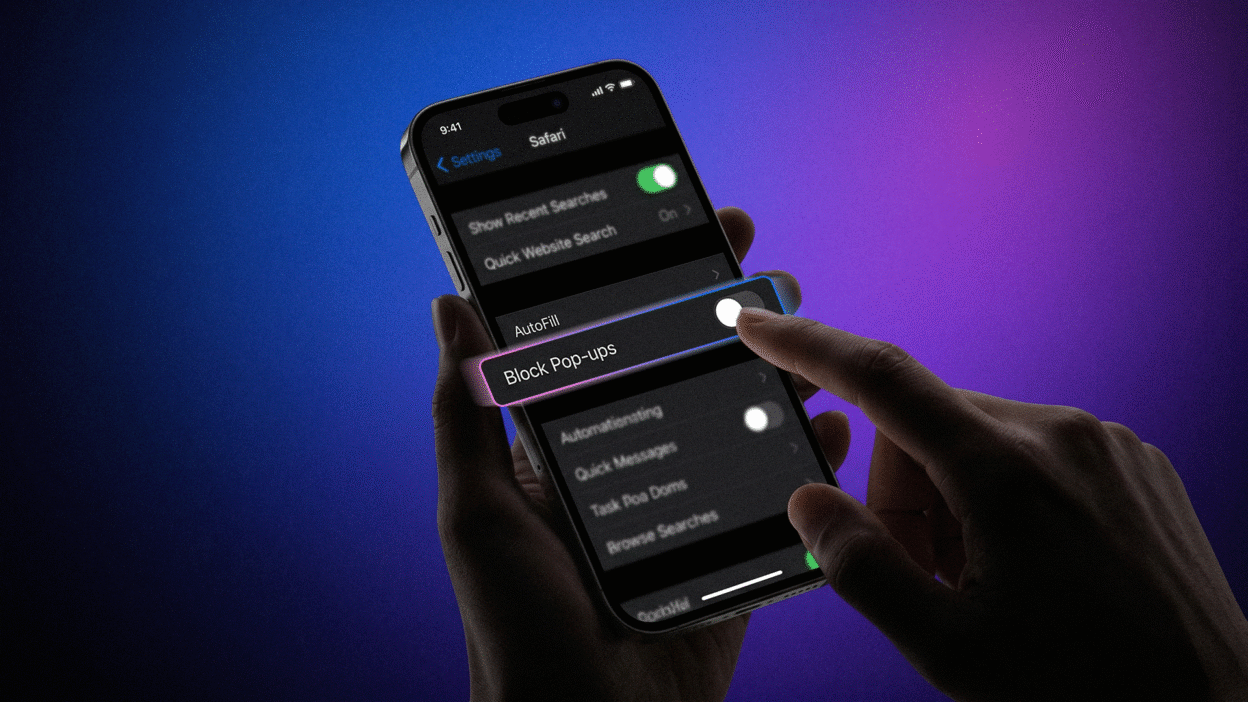
- The Kill Switch: Look for the General section and find the Block Pop-ups toggle.
- Flip it Off: Switch it to OFF (so the green turns to grey).
- The Pro-Tip: Don’t forget to head back to Safari and refresh your tab for the change to actually kick in.
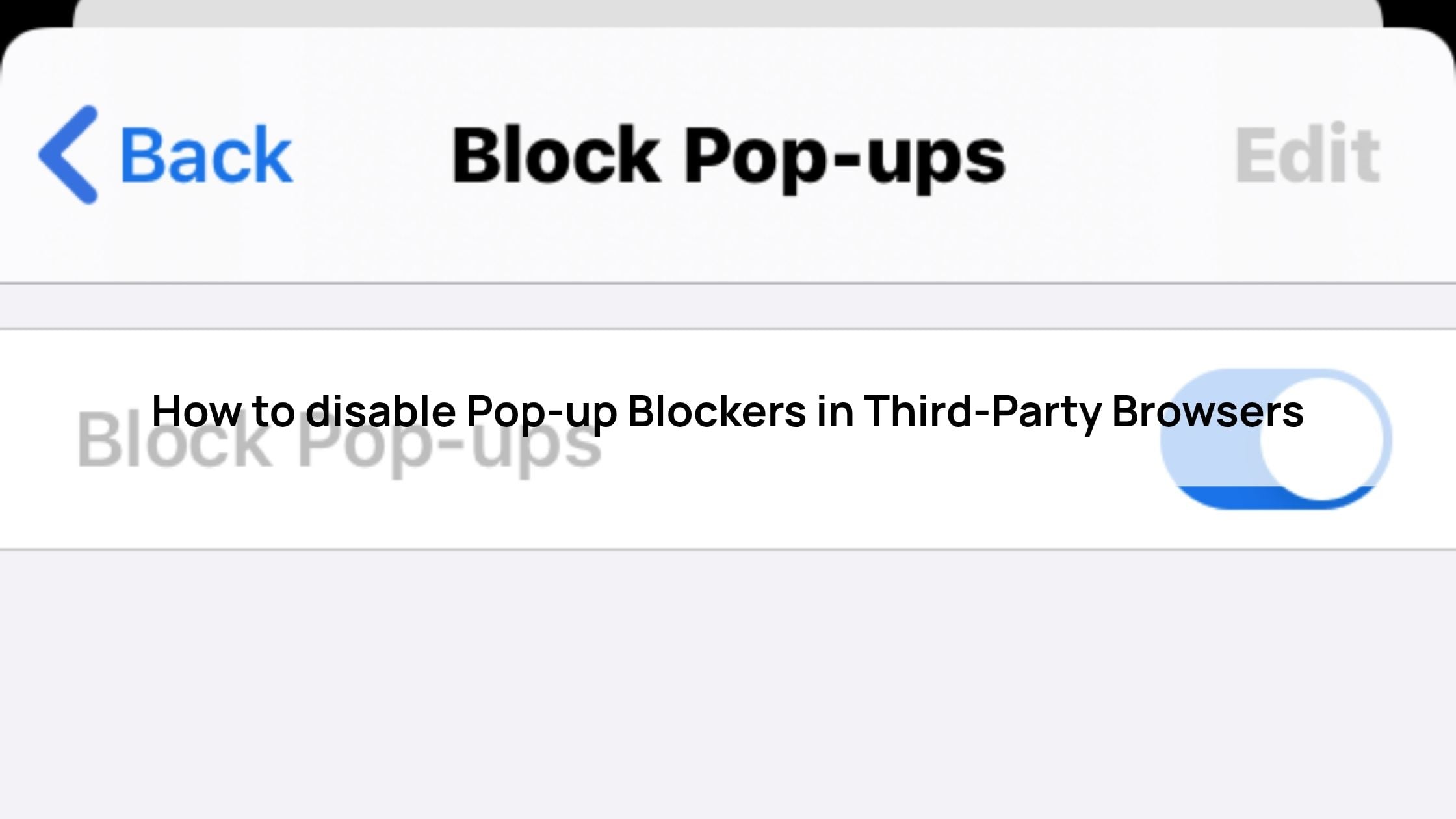
How to disable Pop-up Blockers in Third-Party Browsers
- Google Chrome: Open the app and tap the three dots in the corner. Head to Settings, find Content Settings, and then toggle Block Pop-ups to get off.
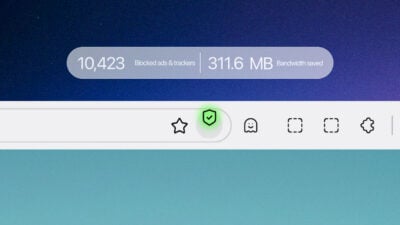
- Herond Mobile: You don’t actually have to turn everything off here. Just tap the Shield icon in the address bar for the specific site you’re on. It lets you whitelist “good” windows for that one page without leaving your whole phone vulnerable to junk.
- Firefox: Tap the Menu button (the three lines), go to Settings, then browse. You’ll see the Block pop-up windows toggle, just flip it off to let the windows through.
Advanced fixes: Still Not Working?
- The “Always Show” Shortcut: You don’t have to leave the door wide open for everyone. In Chrome, when a window is blocked, look for the “Pop-ups blocked” notice at the bottom of the screen. Tap “Always show” for that specific site. This keeps the junk out everywhere else while letting your favorite sites work perfectly.
- The “Greyed Out” Fix: If you go to change the setting and it’s locked or greyed out, your Screen Time settings are likely playing parent. Head to Settings > Screen Time > Content & Privacy Restrictions to make sure you have permission to change browser settings.
- Clear the “Ghost” Data: Sometimes you flip the switch but nothing changes. That’s usually because your browser is “ghosting”, holding onto old site data. A quick Cache Clear in your browser settings will wipe the slate clean and force the new “allow” rules to actually kick in.
The “Herond Way”: Why Whitelisting Beats Disabling
- The Big Risk: Turning off your blocker entirely is like leaving your front door wide open. It doesn’t just let in the windows you want; it invites in “malvertising” and trackers that follow you around the web. You want a filter, not a complete blackout.
- Intelligence Over Instruction: This is where Herond AI actually helps. Instead of blindly blocking everything that tries to open, it uses its engine to tell the difference between a malicious pop-up and a necessary transaction. It’s smart enough to know that a wallet signature is a “good” window, while a random ad is “junk,” so you don’t have to keep flipping switches manually.
Conclusion
At the end of the day, how to turn off pop up blocker on iphone should be your bodyguard, not your jailer. It’s great at stopping the junk, but when it starts getting in the way of your bank logins or crypto transactions, it’s time to take control.
Whether you decide to flip the master switch in Safari or use a more surgical approach with Herond’s Shield, the goal is the same: making sure your phone works for you. Just remember to be picky, allow the windows you need, but keep the guard up for the rest of the web.
About Herond
Herond Browser is the new AI browser, prioritizing privacy for a safer, faster, and smarter browsing experience with minimal data use. Built for the Web2-to-Web3 shift, it enables you to access the open web while you own your data, private Web3 assets, and earn true value.
To enhance user control over their compound experience, Herond offers:
- Herond AI: A new agentic browser that leads your workflow.
- Herond Shield: A robust adblocker and privacy protection suite.
- Herond Wallet: A secure, multi-chain, non-custodial social wallet.