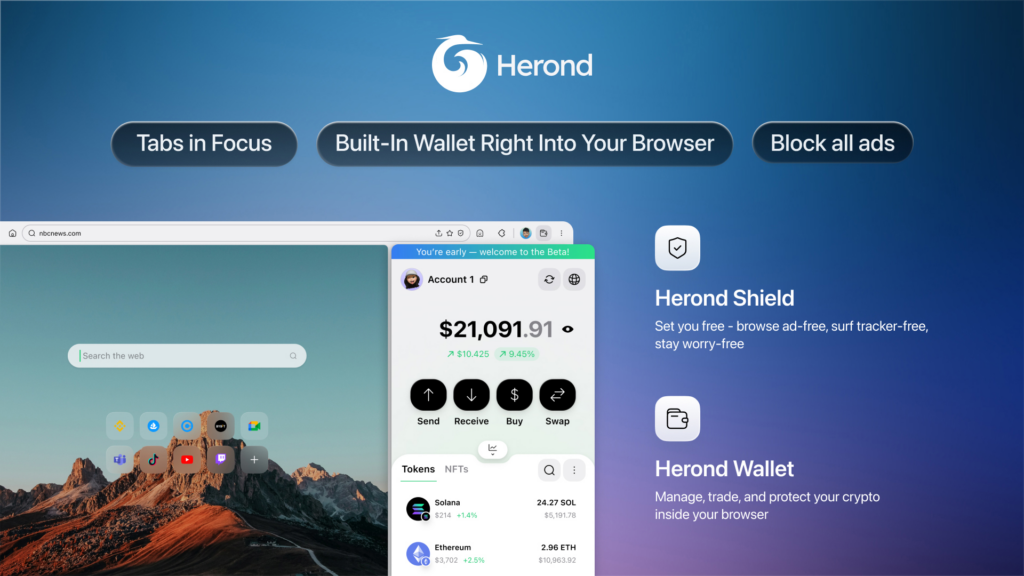

We’ve all been there: you want a clean, ad-free experience, but then your bank login breaks, your wallet signature won’t pop up, or a download just… vanishes. It’s frustrating to feel like you have to choose between a private web and a functional one. The goal here is simple: we’re going to show you how to disable pop up blocker so you can keep the protection you love without breaking the tools you actually need. At Herond, we call this “Intelligent Navigation.” It’s the idea that your browser should be smart enough to get out of your way when it matters, acting as a partner that works for you, not against you.
Why You Should Never disable Your Blocker Completely
- The Hidden Risks: When you drop your guard entirely, you aren’t just letting in ads. You’re opening the door to malicious scripts and “malvertising” (ads that carry nasty surprises) and letting tracking cookies follow you around the web. Turning off your blocker shouldn’t mean giving up your privacy.
- The Smart Solution: Instead of a giant “on/off” switch for the whole internet, use Granular Control. You can keep your shields up for the rest of the web while white-listing only the specific domains you actually trust, like your bank or your favorite dApp. It’s about being precise, not vulnerable.
How to disable Pop up Blocker for Specific Sites (Desktop)
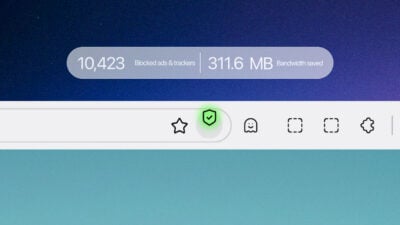
- Herond Browser (The “Leading Agent” Way): This is as simple as it gets. Just click the Herond Shield icon right in your address bar to whitelist a site instantly. It’s designed to be a one-click fix so you can get back to what you were doing without digging through menus.
- Google Chrome: Chrome makes you work for it a bit more. You’ll need to head into Settings, find Privacy and Security, and then look for the “Exceptions” list. From there, you can manually add the URLs of the sites you want to give a pass.
- Safari for Mac: If you’re on a Mac, open your Settings (or Preferences) and jump over to the Websites tab. You’ll see a list of currently open sites where you can toggle blockers off or customize how Safari treats them individually.
- Microsoft Edge & Firefox: Both of these follow a similar path. You’ll want to find the “Permissions” or “Exceptions” menu within your privacy settings. Look for the “Allowed” sites list to add the domains that need a “hall pass” to function properly.
How to Manage Trusted Sites on Mobile (iOS & Android)
- Safari on iPhone: iOS is a bit more “all-or-nothing” by nature, often requiring you to toggle settings for the whole app. However, you can manage it carefully by tapping the ‘AA’ icon in the address bar. This lets you quickly turn off content blockers for just that specific site without breaking your privacy everywhere else.
- Herond Mobile: This is where the “New Concept” UI shines. It’s built for one-handed use, so you can just tap the shield icon and toggle protections on a per-site basis. It’s fast, precise, and ensures you aren’t leaving the door open for the rest of your browsing session.
- Chrome for Android: If you’re on the move, tap the three dots in the corner and head to Site Settings. From there, you can add exceptions for things like how to disable pop up blocker on the fly, so your favorite tools keep working while you’re out and about.
Beyond the Toggle: Intelligent Whitelisting with Herond AI
- Predictive Security: Instead of just blindly blocking everything, Herond’s AI actually pays attention. It’s smart enough to tell the difference between an annoying pop-up and a functional one, like an ACP-protocol transaction or a wallet signature. It identifies what you need to see, so you don’t have to keep fixing what the blocker broke.

- One Fluid Motion: We’re all about reducing “click-debt.” You shouldn’t have to dig through five layers of settings just to whitelist a site you use every day. Herond makes it a single, natural movement, so managing your permissions feels like a breeze rather than a chore.
- The Herond Shield: Think of this as more than just a simple ad-blocker, it’s a data fortress. Because it’s baked into the browser’s core, it protects your info at the engine level. It doesn’t just hide ads; it proactively guards your digital footprint while making sure your experience stays smooth and uninterrupted.
Troubleshooting: When “Allowed” Sites Still Won’t Pop Up
- Check for Extension “Drama”: Sometimes two blockers are one too many. If you have a 3rd-party extension running alongside Herond’s built-in shield, they might be fighting each other. Try disabling the extra one to see if the site clears up.
- The “Fresh Start” Fix: If a site is still acting glitchy after you’ve whitelisted it, try clearing the cache and cookies for just that specific site. It’s like a quick reboot for the page without losing all your other open tabs.
- Verify Your Connection: If you’re trying to use a dApp, double-check that your Herond Wallet (or whatever wallet you’re using) is actually linked. Sometimes the site just needs a quick “re-connect” to recognize that the gates are open and ready for a transact
Conclusion: Total Control Over Your View
At the end of the day, a browser should be a tool that empowers you, not a wall that gets in your way. Whitelisting your trusted sites is about more than just making pages load, it’s about taking back control of your digital space.
Whether you’re using Herond’s Intelligent Navigation to automate the process or manually tweaking settings in Chrome or Safari, the goal is the same: stay protected where it matters, and stay productive where it counts. You don’t have to settle for an “all-or-nothing” internet. With a few quick clicks, you can keep the web clean, fast, and most importantly: functional.
About Herond
Herond Browser is the new AI browser, prioritizing privacy for a safer, faster, and smarter browsing experience with minimal data use. Built for the Web2-to-Web3 shift, it enables you to access the open web while you own your data, private Web3 assets, and earn true value.
To enhance user control over their compound experience, Herond offers:
- Herond AI: A new agentic browser that leads your workflow.
- Herond Shield: A robust adblocker and privacy protection suite.
- Herond Wallet: A secure, multi-chain, non-custodial social wallet.