
We have a classic love-hate relationship with pop-ups: we want the annoying marketing ads gone, but in 2026, allow pop-ups Chrome have evolved into critical gateways for Web3 wallet signatures, multi-factor bank authentications, and autonomous AI agent permissions. While Google Chrome’s native blocker is meant to keep you secure, this aggressive “over-blocking” often breaks your active workflow, creating a bottleneck of failed transactions, lost productivity, and endless tab fatigue. Fortunately, fixing this digital friction doesn’t require complex technical skills. Here is a quick, 60-second fix to stop Chrome from sabotaging your daily operations and ensure your essential web actions load seamlessly.
How to allow pop ups Chrome (PC & Mac)
- The Global Toggle (Open the Gates): If you are running heavy transaction cycles and need zero interruptions, you can lift the restriction entirely. Click the three vertical dots (⋮) in the top-right corner > select Settings > navigate to Privacy and security > click Site Settings > scroll down to Pop-ups and redirects, and under Default behavior, select “Sites can send pop-ups and use redirects.”
- The Precision Method (Recommended For Focus Protection): To keep your workspace clean without exposing yourself to malicious marketing spam, leave the global blocker on and use targeted whitelisting instead. Under the same menu, look for the “Allowed to send pop-ups and use redirects” section, click Add, and paste the specific URLs of your trusted Web3 networks, banking dashboards, or AI platforms.
- On-the-Fly Address Bar Overrides: You don’t have to dive into settings every time a signature fails. When Chrome intercepts a critical window, a small “Pop-up blocked” icon (a window with a red ‘X’) will flash on the right side of your address bar.() Simply click that icon, select “Always allow pop-ups and redirects from [Site URL],” and hit Done to instantly unblock the transaction path.
- Beware of Extension Overrides: If you’ve configured your native Chrome settings and critical verification windows are still failing to load, a third-party ad blocker or security extension is likely conflicting with your layout. Temporarily toggle your ad-blocking extensions off, or add the specific platform to your extension’s whitelist to restore smooth, automated operations.
How to Allow pop ups Chrome Mobile (Android & iOS)
- Chrome for Android Configuration: Don’t let verification screens freeze your mobile workflow. Open Chrome on your Android device, tap the three vertical dots (⋮) next to the address bar, and select Settings.() Scroll down and tap Site settings, select Pop-ups and redirects, and toggle the switch to allow necessary authentication links to launch freely.
- Chrome for iOS/iPhone Adjustments: Apple handles browser behavior a bit differently, meaning you have to adjust settings directly inside the application rather than your central iOS panel. Open the Chrome app on your iPhone, tap the three-dot menu icon (…) in the bottom corner, tap Settings, navigate to Content Settings, select Block Pop-ups, and toggle the switch off.
- The “Broken Mobile Page” Dilemma: Mobile users frequently run into broken layouts or stalled buttons because mobile browsers enforce exceptionally aggressive out-of-the-box security defaults. Since smartphones run on highly restricted mobile operating systems, Chrome natively blocks multi-tab redirects with iron-clad severity to conserve battery power and RAM, inadvertently killing legitimate dApp connections and banking scripts in the process.
- One-Tap Banner Overrides: If you prefer keeping the global blocker active while browsing on your phone, look at the bottom of your display during an authentication attempt. When Chrome intercepts a window, a subtle snackbar banner stating “Pop-up blocked” will slide into view; simply tap Always show to instantly bypass the wall for that specific web session.
Troubleshooting: Why Pop-ups Still Won’t Appear
- The Extension Conflict (The Hidden Layer): Sometimes, configuring Chrome’s native settings isn’t enough. Popular third-party privacy ad-blockers and security extensions operate on independent rule lists that completely override your browser defaults. If your critical authentication pop-ups are still failing to load, you’ll need to manually open your extension’s dashboard and explicitly add the trusted domain to its whitelist.
- Clearing “Ghost” Cache & Cookies: If you’ve whitelisted a site but its verification windows are still freezing, you are likely dealing with stuck browser data. A corrupted cache or outdated cookie can trap Chrome in a legacy loop, tricking it into enforcing old blocking rules. A quick purge of your cached images and files for that specific site will clear out the “ghost” settings and reset the execution pipeline.

- Smart Malware Distinctions: It is crucial to distinguish between a functional, user-triggered pop-up and a genuine security threat. Legitimate pop-ups are explicitly requested by your actions, such as clicking “Sign Transaction” or “Log In” and loading secure, encrypted HTTPS domains. If an unexpected window launches completely unprompted, contains flashing text, or demands sudden software updates, close the tab immediately and run a quick browser security check.
- Isolating the Environment: When troubleshooting persistent friction, try opening a clean Incognito window with all extensions disabled. If the critical pop-up launches successfully in this isolated mode, it confirms that a third-party extension or stale local data layer is causing the bottleneck, giving you a clear starting point to clean up your workspace.
Beyond the Pop-up: The Rise of Agentic Browsing
- The Problem with Legacy Architecture: Manually digging into Chrome’s settings just to allow a basic authentication or wallet signature is a clear symptom of an outdated, passive browser framework. Built for an older era of static reading, Chrome views every secondary window as a potential threat, forcing you to constantly micro-manage toggles just to keep your basic daily workflow from grinding to a halt.
- Embracing the 2026 “Search-to-Action” Shift: The modern web moves too fast for multi-tab friction and broken redirect loops. Today’s standard demands a seamless transition from discovery to final execution, eliminating the need to copy contract addresses across multiple windows, juggle buggy third-party extensions, or constantly battle aggressive built-in pop-up blockers.

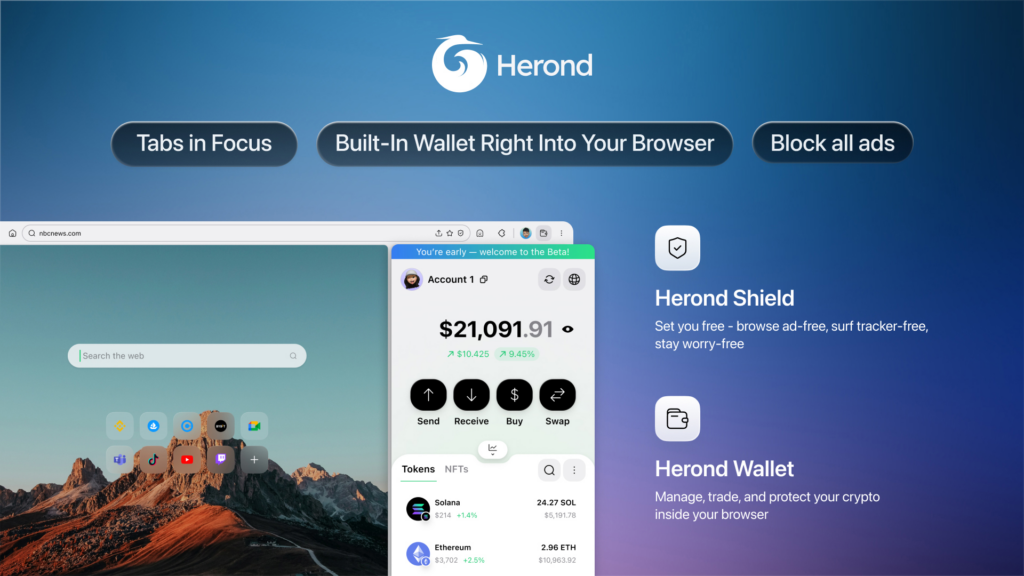
- Herond’s Seamless Execution Layer: Herond completely re-engineers this pipeline by replacing chaotic pop-up behaviors with a streamlined, native execution layer. Instead of opening vulnerable secondary tabs that clutter your screen, the browser core handles your multi-step transactions, smart contract interactions, and automated data extractions directly within a single interface.
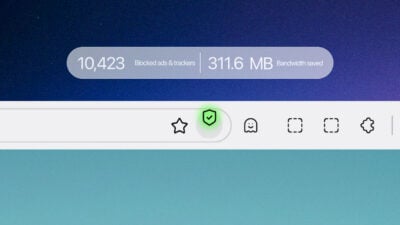
- The Smart Defense of Herond Shield: Security shouldn’t come at the expense of your productivity. Serving as an automated firewall, Herond Shield intelligently runs background checks on web actions in real-time, instantly authorizing verified on-chain interactions and essential system scripts while silently neutralizing intrusive trackers and malicious script noise behind the scenes.
Conclusion: Control Your Digital Environment
At the end of the day, managing your digital workspace should be about empowering your workflow, not wrestling with settings. While the step-by-step methods outlined above provide a quick, reliable fix to stop Chrome from breaking your critical authentication loops, they highlight a much larger question: is your current browser actually working for you, or are you working for it? Relying on manual toggles, whitelists, and extension patches just to execute basic on-chain actions is a sign that your tools are falling behind the speed of the modern web. You shouldn’t have to micromanage your software just to stay productive. If you are ready to transition from a passive layout that merely displays information to a native execution layer that actively automates and protects your workflow, it’s time to upgrade. Step into the future of Web3, eliminate the manual grind completely, and allow pop ups chrome, download Herond today.
About Herond
Herond Browser is the new AI browser, prioritizing privacy for a safer, faster, and smarter browsing experience with minimal data use. Built for the Web2-to-Web3 shift, it enables you to access the open web while you own your data, private Web3 assets, and earn true value.
To enhance user control over their compound experience, Herond offers:
- Herond AI: A new agentic browser that leads your workflow.
- Herond Shield: A robust adblocker and privacy protection suite.
- Herond Wallet: A secure, multi-chain, non-custodial social wallet.